This walkthrough takes approximately five minutes. It uses the inline format, which is the quicker of the two interfaces.
Before you start
You need a font that has stylistic sets. If you have not added one, read Add your first font. Do that first. With a font that has no alternates, these steps seem to do nothing.
Step 1: Write a headline
Create or edit a post. Add a Heading block and type a few words. Words with interesting capitals show the most change.
Step 2: Select complete words
Select the text that you want to style. Select whole words. See The two ways to use the plugin to learn why the plugin treats partial selections differently.
Step 3: Open the panel
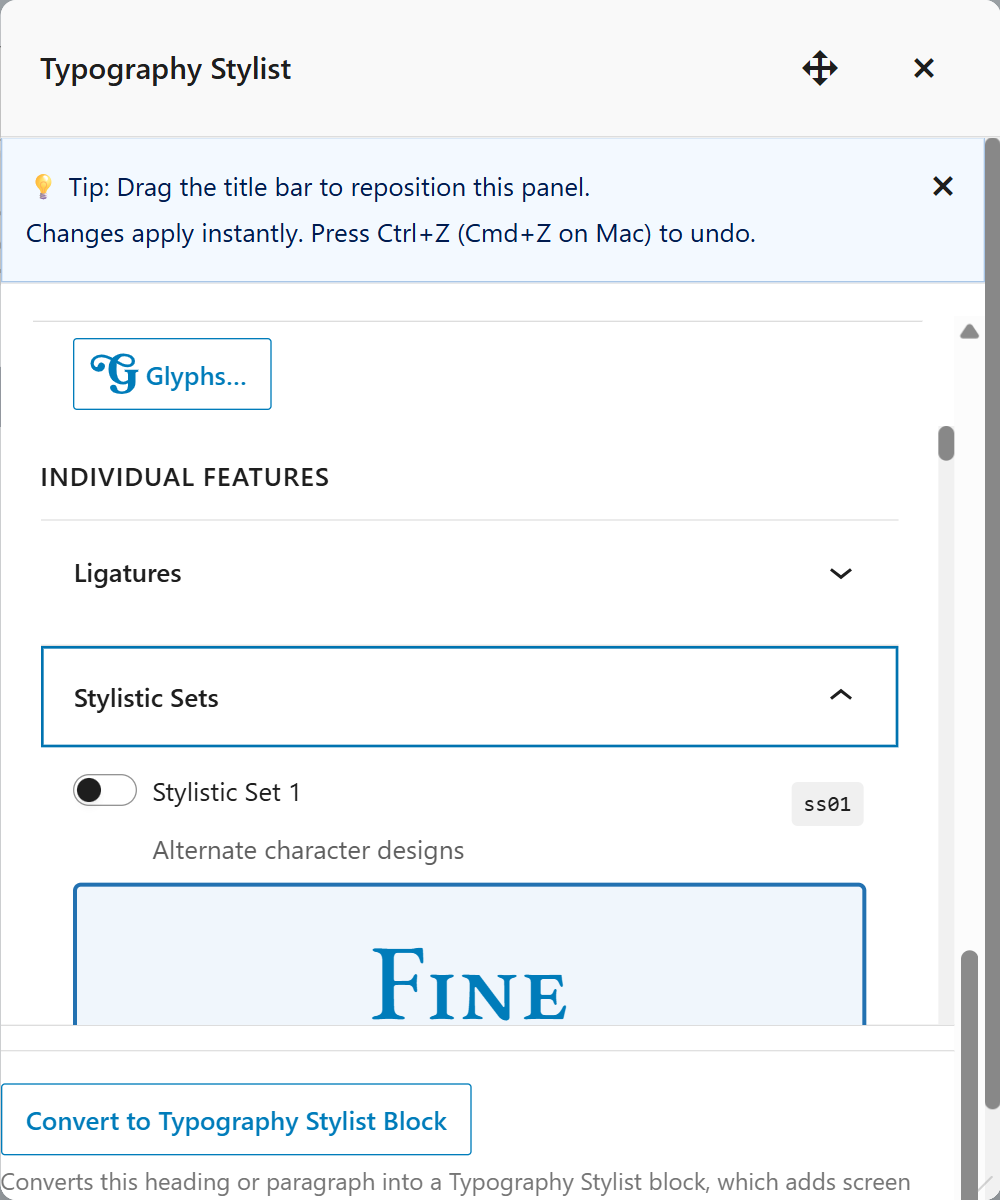
Click the swash T in the block toolbar. Its name is “Typography Stylist Features”. A panel opens. The font controls are at the top. The OpenType features are below them, in groups.
Step 4: Choose a font, then a feature
First, select your font in Font Family. The feature list is useful only for a specific font. The Font Family menu is searchable. Type part of a font name to filter the list.
Then open Stylistic Sets and turn on ss01. Look at your heading. If nothing changes, turn on ss02, and continue. Each font uses different set numbers. Each feature row also shows your text with that feature, so you can compare before you turn it on.
Step 5: Check the result
You do not need to click a button. Each change applies to your text immediately. The plugin writes the styling into the post content as a span. To undo a change, press Ctrl+Z (Cmd+Z on a Mac). When you are done, click Close.
Nothing changed. What now?
Do these checks in this order:
- Is a font selected? If you did not choose a font, the features apply to the theme font. That font may not have them.
- Does this font have that set? Open the Glyphs Panel and look. It shows the answer.
- Do your letters have alternates? A set can change only some characters. Try a word with different letters.
What next?
- OpenType feature reference: Read about all 51 features.
- Paragraph styles: Save settings that you like and use them again.
- The Glyphs Panel: Browse a font to find its alternates.