The Glyphs Panel shows every glyph in a font. It works like the Glyphs panel in Illustrator and InDesign. Other pages here send you to it for one question: what is in this font?
How do I open it?
Select some text and open the typography panel. Then click Glyphs….
You can also click the Glyphs button in the block toolbar, in both editors. To remove the button, go to Settings → Typography Stylist → Options and clear Add a Glyphs button to the block toolbar.
To look at a font without editing content, go to Settings → Typography Stylist → Glyphs.
What can I do with it?
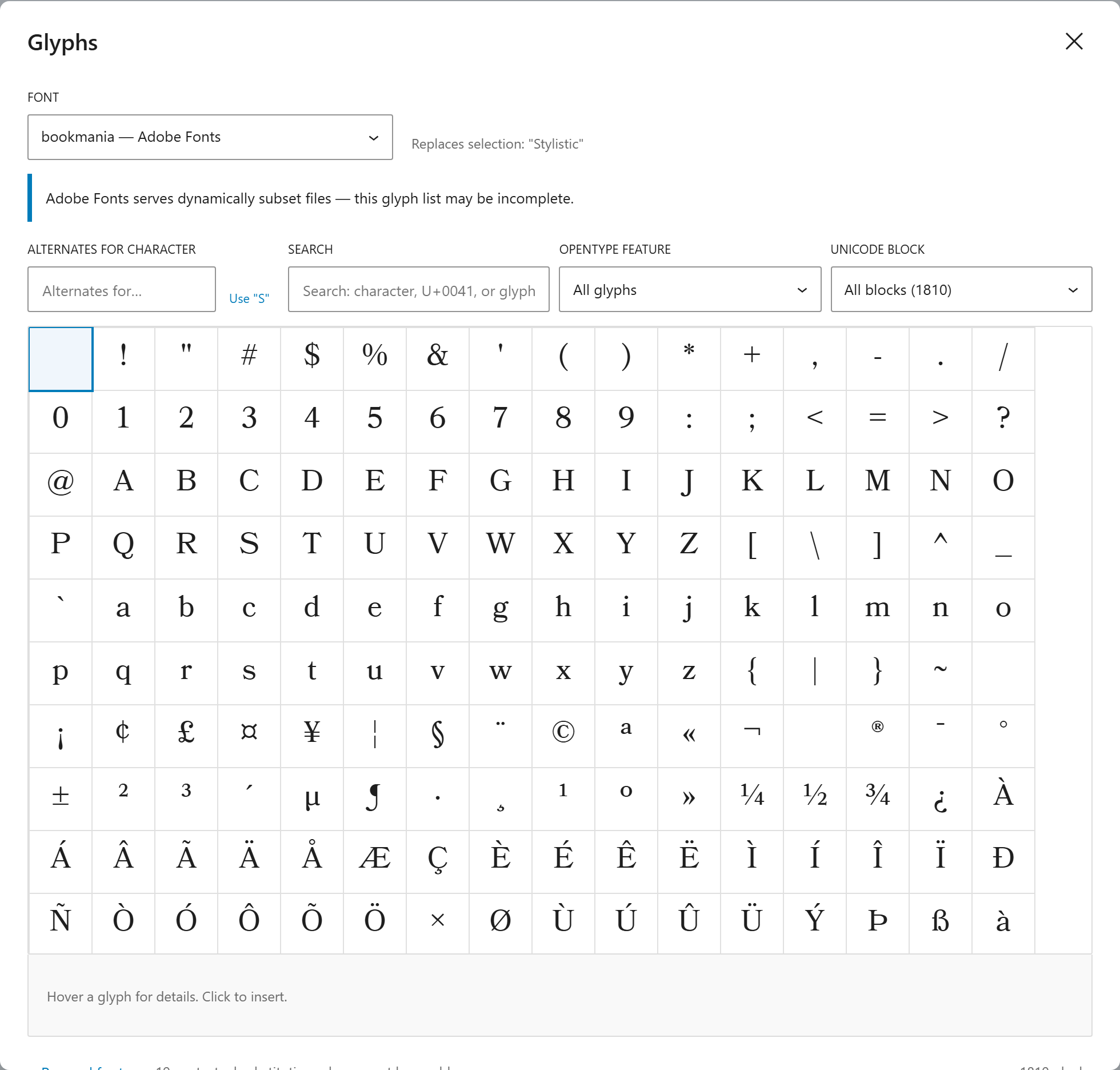
- See every character: The panel shows all the characters in the font, not only the characters on your keyboard.
- Filter by OpenType feature: Select
ss03to see the glyphs that it changes. - See the alternates for a character: Select a letter to see each variant that the designer drew for it.
- Change the glyph size: Choose Small, Medium, Large, or Extra large in Glyph size to compare similar alternates, such as the swash capitals of a script font. The grid shows more or fewer columns to fit. The panel keeps the size in your browser, for the editor and for the Glyphs tab.
- Insert a glyph: The panel inserts the glyph at the cursor, with the correct feature settings. The glyph gets a font weight only when the selected text has its own weight. Otherwise it uses the weight of the text around it, and it changes when that weight changes.
The alternates view saves the most time. You do not need to turn on ss01 and hope. You can look at a letter, see its four alternates, and select the one you want.
How does inserting an alternate work?
Some alternates are not available when you turn on a whole feature. They are the second or third variant in a numbered list. The panel writes the exact setting, for example "salt" 2, on that character only. The rest of the word does not change.
When you insert a different character, the panel puts it after the glyph that you inserted before. When you pick another alternate of the same character, the panel replaces the glyph.
If you selected part of a word, the panel shows the partial-word warning. It also offers to convert the block to a Typography Stylist block.
Is my font sent anywhere?
No. Your browser reads the font. The panel examines only its metadata: the character coverage and the feature tables. It never extracts or stores glyph outlines, and it uploads nothing. Each cell shows the character as text, in the font itself.
This is a legal matter as well as a technical one. Most font licenses do not allow the extraction of outlines, so the panel does not do it.
Which fonts can the panel read?
The panel works best with uploaded kits. It also reads WordPress Font Library fonts. Adobe Fonts sends subset files, so the glyph list for an Adobe font can be incomplete. For a custom font definition, the panel often has no file to read. It then shows a message and no glyphs.
Why does a feature show no glyphs?
The font does not contain the feature. This answer is correct. It is quicker than testing each feature in the editor.