The Typography Stylist block gives you the most control. Its sidebar has typography settings for the whole block, and its toolbar opens a panel for selected text. The block also keeps a plain copy of the text, so screen readers can read styled display text.
When is the block the right choice?
- You want to style part of a word, for example one decorative initial.
- You want to set the font, weight, size, line height, and letter spacing of the whole block.
- You need responsive or fit-to-width sizing.
- The styling is complex, and screen reader output is important.
For complete words in a heading that you already have, the inline format is quicker.
What is in the sidebar?
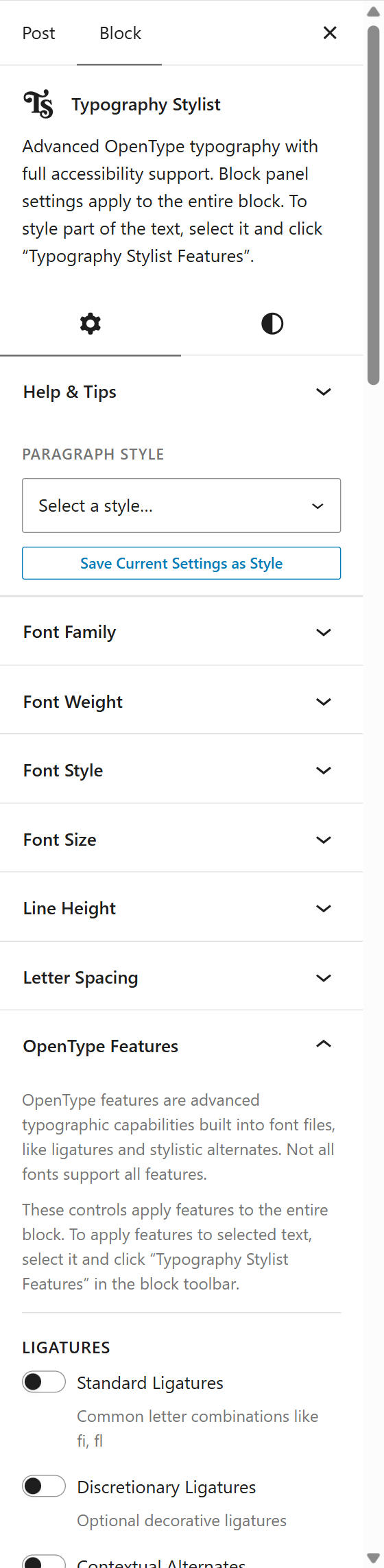
- Paragraph Style: Apply, update, or detach a saved style.
- Help & Tips: Read short tips about the block.
- Font Family, Font Weight, and Font Style: Set the font of the whole block.
- Case: Change how the letters look: Default (the case the theme sets), Normal, All Caps, Lowercase, Title Case, Small Caps, or All Small Caps. The stored text keeps the case you typed. For the two small caps choices, Allow fake small caps lets the browser shrink capitals when the font has no small caps. Screen readers read the original text in this block.
- Font Size: Choose Inherit, Responsive (Fluid), or Fit to width.
- Line Height: Set the space between the lines.
- Letter Spacing: Set the space between the letters. The unit is a thousandth of an em.
- First Letter Hang: Move the first letter into the margin, so that a swash hangs outside the text edge and the main shape of the letter aligns with the edge. The value is in em, so the hang changes with the text size. Only the first line hangs. In fit-to-width mode, each line has its own value. The hang has no effect on centered text or on text aligned to the end. A paragraph style can keep the value, and it then also applies to core Paragraph and Heading blocks that use the style.
- OpenType Features: Turn on features for the whole block.
- Accessibility: Choose the class that hides the screen reader copy.
- Reset Features: Clear the features and styling of the block.
To change the heading level, use Change heading level in the block toolbar. You can choose H1–H6, a paragraph, or a div.
What are the Quick Feature Toggles?

Select text in the block and click the swash T in the toolbar. The Quick Feature Toggles panel opens. It applies to the selected text, not to the whole block. It has the same controls as the sidebar. Use it to style one letter differently from the rest of the line.
To change the case of part of the block, select the text and use Case (for selected text). It has the same choices as the block’s Case setting, and Allow fake small caps for Small Caps and All Small Caps. The block’s own Case setting does not change. For example, a headline in Title Case can have its first word in All Small Caps. The text keeps the case you typed, and screen readers read it as typed.
How does the dual content work?
The block shows your text two times. The first copy is a plain heading. It is hidden visually, but assistive technology and search engines read it. The second copy is the styled version, with aria-hidden. A screen reader reads the words, and a sighted reader sees the typography.
Because of this, you can style single letters safely. See The accessibility model.
Can I convert an existing heading?
Yes. Select the heading and use the block switcher. You can also accept the conversion that the inline format offers when you select part of a word. The inline styling that you applied stays.
What does Enter do inside the block?
By default, Enter adds a line break, so a multi-line headline stays one block. To make Enter start a new block, go to Settings → Typography Stylist → Options. Clear Enter adds a line break inside the block. Shift+Enter always adds a line break.
When Enter starts a new block, the new block is a paragraph. If you press Backspace at the start of that paragraph, WordPress joins it to the heading with no line break.