This page explains how to add fonts to Typography Stylist and how the plugin loads them. The four font sources are at Settings → Typography Stylist → Custom Fonts.
To change the order of the fonts, drag a font card. The editor font list uses the same order. To open the settings of a font, click its name on its card.
The settings page loads fonts only for the tab that is open. On the Custom Fonts tab, a font preview loads when its card comes into view. So a preview can show a fallback font for a moment after you scroll.
Uploaded webfont kits
Upload a ZIP file of webfont files. The plugin extracts them, writes the @font-face CSS, and adds the font family to the editor font list.
The files go in wp-content/uploads/typography-stylist/fonts/. An .htaccess rule prevents a listing of the folder. Each font gets a numeric ID. Content uses the ID in a CSS variable, for example var(--font-12). The plugin uses this variable to find the fonts that a page needs.
The plugin detects the weights in each new font and selects them in Available Font Weights on its card. If the tab shows Auto-detect weights for existing fonts, click it to detect the weights of older fonts.
Licensing: A desktop license seldom covers web use. Make sure that you have a webfont license. Also check for page-view limits.
Adobe Fonts
Paste the embed code from an Adobe Fonts web project. Then type the family names from the project. The plugin loads those families. Adobe hosts the files, and your subscription covers the license.
You can use Adobe families with the Glyphs Panel, but the glyph list can be incomplete. You enter Adobe axes by hand, or the browser reads them.
The block editor loads only the Adobe Fonts kits that the post uses. When you pick or preview another Adobe font, its kit loads then.
Custom font definitions
If your theme already loads a font, add a definition for it. Do not upload a second copy. You give the font name and the CSS font family, with fallbacks. The plugin adds the font to the editor font list and loads nothing more.
The WordPress Font Library
On WordPress 6.5 and later, you can use fonts that are installed in the core Font Library. When you pick one in the editor, the plugin adopts it. It gives the font a numeric ID, so that you can use it like any other font. How WordPress stores and serves the font does not change.
A font that you install in the Library shows in the editor font lists the next time you open the editor.
Library fonts also show on the Custom Fonts tab. To open the Font Library in a new tab, click Manage in Font Library on the card. On WordPress 7.1 and later, the link opens Appearance → Fonts. On earlier versions, it opens the Site Editor.
You can also register an uploaded kit in the Font Library. It then shows in the Site Editor font pickers with the theme fonts. This is a site-wide setting, and it needs administrator rights. New uploads register automatically when Automatically register newly uploaded fonts in the WordPress Font Library (recommended) is on. This setting is on the Options tab, and it is on by default. To register older fonts, use the buttons on the Custom Fonts tab. You can register them one at a time or all together.
A font that is registered in the Library but not activated in global styles is installed, not in use. WordPress prints no @font-face for it. In that case, the plugin prints its own. This is also true for adopted Library fonts. So your content does not show a system font in place of your font.
Feature Visibility
Each font card has a Feature Visibility section. Use it to control which features show in the editor for that font.
Fallback fonts
Each font can have a fallback list. The browser uses it while the font loads, and if the font does not load. Choose fallbacks that are similar in width and weight. This makes the change smaller when the real font arrives.
The fallbacks are part of the font’s CSS variable. When you change them, all content that uses the font gets the new fallbacks. If the frontend does not change, clear the font cache in Options.
Which pages load a font?
By default, a font loads only on the pages that use it. To load a font on every page, select Load on all pages on its card. Use this for a font that only your theme CSS uses.
Replacement fonts
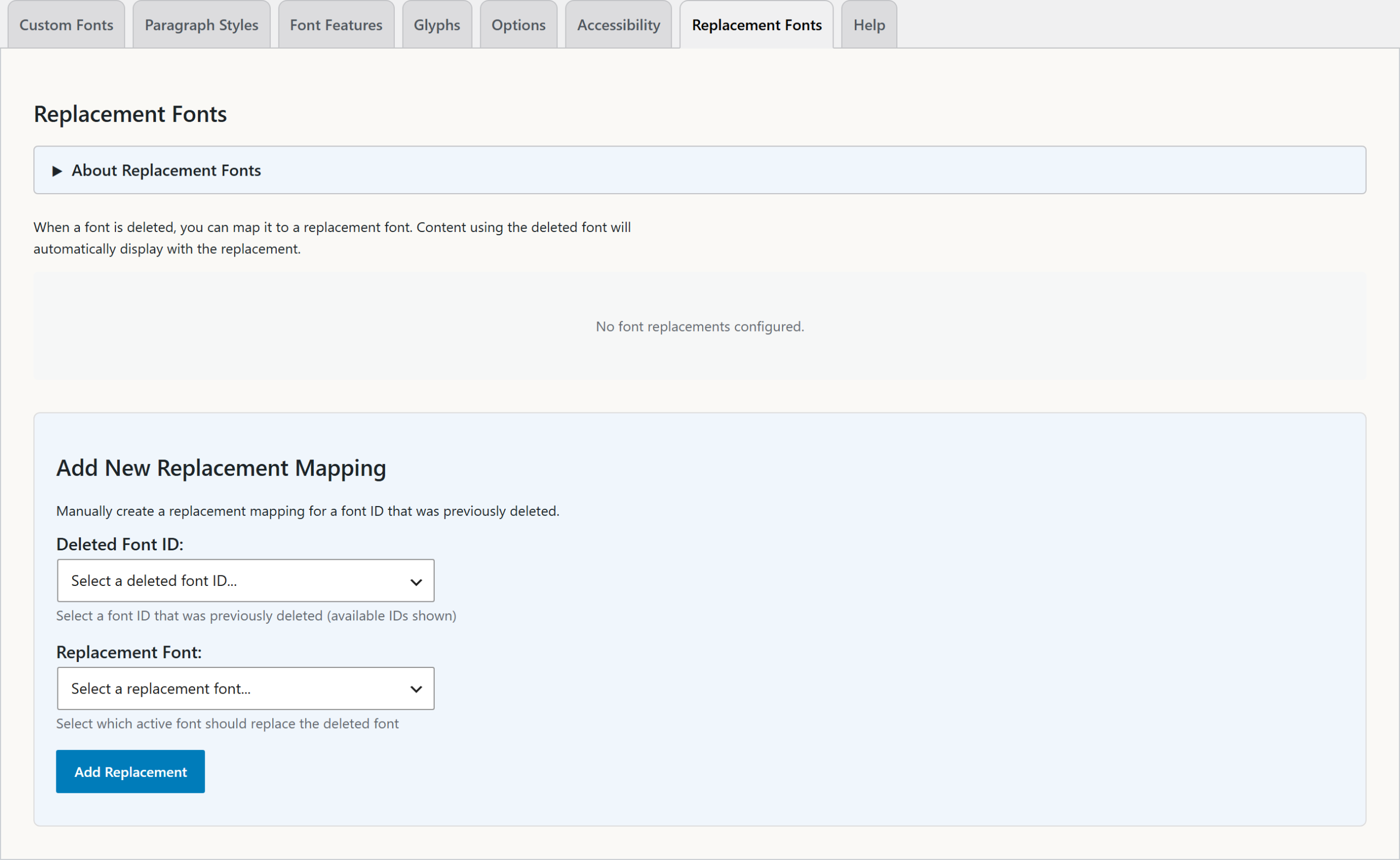
When you delete a font, a replacement mapping points its ID at a different font. Existing content then shows the replacement font, not a default font.
A warning about deleting fonts
Each font gets a new numeric ID when you add it. The plugin never uses an old ID again. If you delete a font and add it again, it gets a new ID. Content that uses the old ID, for example var(--font-5), then shows a fallback font.
When you delete a font that content uses, choose a replacement font in the delete dialog. You can also add a mapping later on the Replacement Fonts tab.